How it works
From forklift gouge to filed claim, without a paper form
DDS is three connected workflows: capture in the field, triage in the dashboard, and proof for whoever pays the claim.
1 · The field workflow
Built for gloves, docks, and dead zones
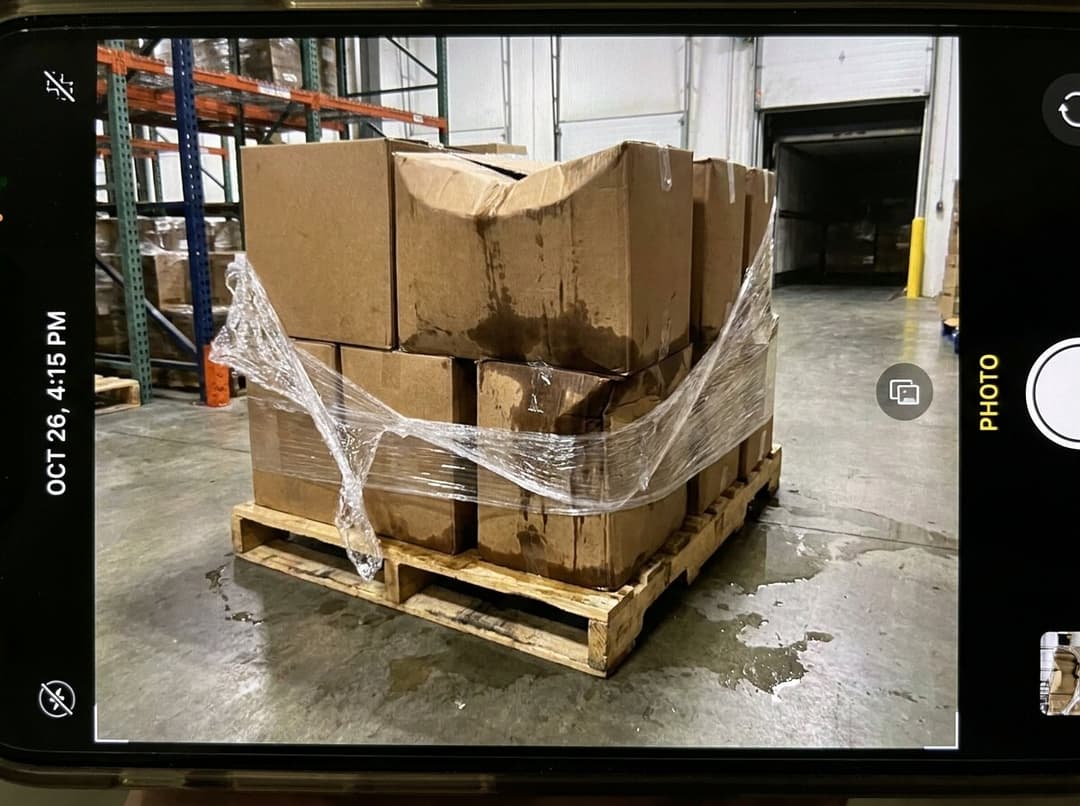
A worker who finds damage opens DDS and sees one screen: photo, show, booth, carrier, notes. Three of those are required — the photo, the show, the booth. Recent shows appear as one-tap chips, so the second report of the day takes seconds.
When they tap Submit, the report is saved on the phone immediately and stamped with that moment — then it uploads in the background. On a show floor with no signal, reports wait in an outbox and send when coverage returns. A report queued Tuesday on a dead floor and delivered Wednesday morning still reads Tuesday. That is the entire point of the product.
Location is captured automatically at photo time when the worker has allowed it — and never blocks a submission when GPS is unavailable.
 ±12 m
±12 m2 · The manager workflow
Every report, one queue
Reports appear in the dashboard the moment they upload, tagged to the right job. Managers work the queue the way dispatch works a board: filter by show, status, or carrier; assign an owner; move each report from New through Reviewing to Claim filed or Resolved.
Comments keep the discussion attached to the evidence instead of in a text thread. Every action — status change, assignment, share, export — is written to an audit trail on the report.
Email and in-app notifications go out on new reports, and a daily digest summarizes yesterday's damage across every active job.
3 · The proof workflow
Claim-ready in one click
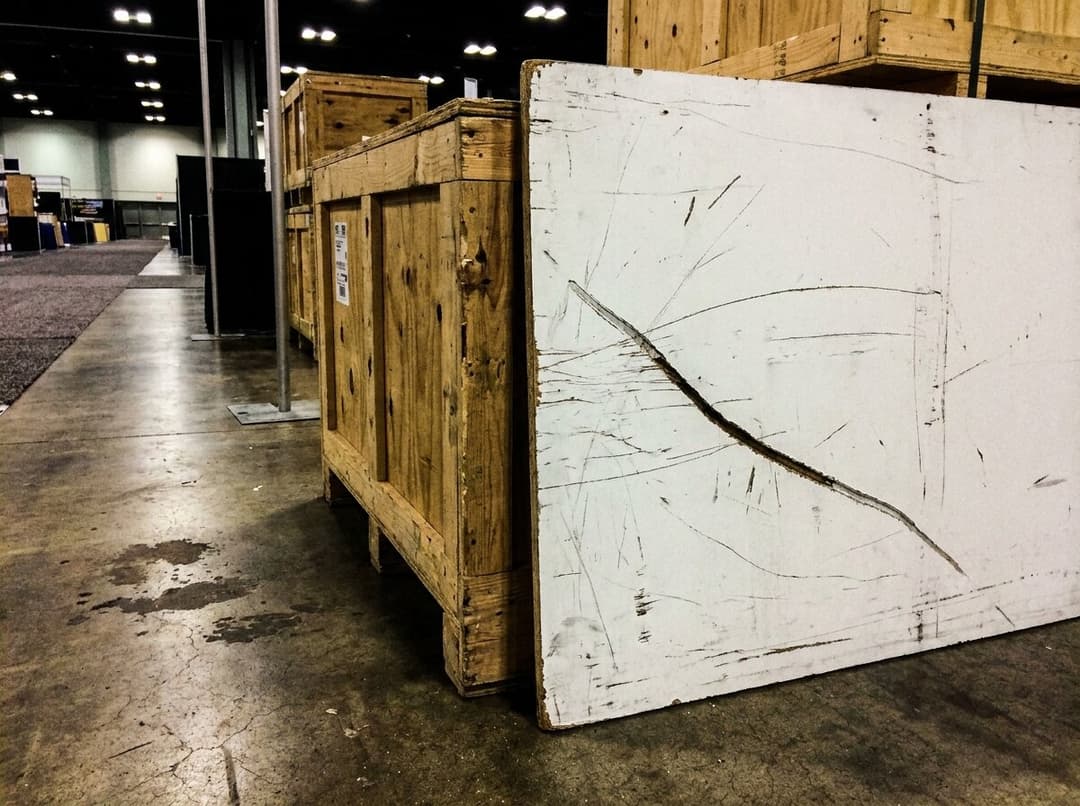
The PDF claim packet opens with the facts — report number, show, booth, carrier and tracking, who reported it and exactly when — then presents each photo on its own evidence page with capture time, dimensions, coordinates, and its SHA-256 fingerprint.
The final page is the chain of custody: every event on the report, from field submission to export, in order. A verification statement explains how the fingerprints can be recomputed from the source files to confirm nothing was altered.
Prefer a link over an attachment? Share a read-only view of the report — no login required on the other end, revocable on yours.
DDS-000147
SHA-256 9f1c2b7a4d334e51…5b2f8c1d7e42
Chain of custody — 6 events
Common questions
What operations teams ask first
What happens when there's no signal on the floor?
Reports queue on the device the moment the worker taps Submit, stamped with that time. The app retries automatically and uploads when coverage returns — the report keeps its original timestamp, not the upload time.
Do field workers need accounts?
No. A manager creates a join code in the dashboard; workers scan its QR poster or type the six-character code once. The phone is enrolled to your organization and can be revoked at any time.
How do carriers or adjusters see a report?
Either as a PDF claim packet or as a read-only share link. Both include the photos, the captured facts, and the photo fingerprints. Share links can expire or be revoked.
Can a photo be edited after submission?
No. Photos are write-once. Each is hashed with SHA-256 at upload, and the hash is printed on the evidence pages so the original can be verified at any time.
What does rollout look like?
Most teams are capturing reports the first day: create a job, print the QR poster, and put it up where the crew signs in. There is no per-seat setup for field workers.
Stop arguing about when the damage happened.
A 30-minute walkthrough with your team, on your workflow, with your scenarios.